> For the complete documentation index, see [llms.txt](https://maintainit.imaginitfm.com/llms.txt). Markdown versions of documentation pages are available by appending `.md` to page URLs; this page is available as [Markdown](https://maintainit.imaginitfm.com/maintenance/manage/parts.md).
# Assign Parts
Add parts to a Work Request.
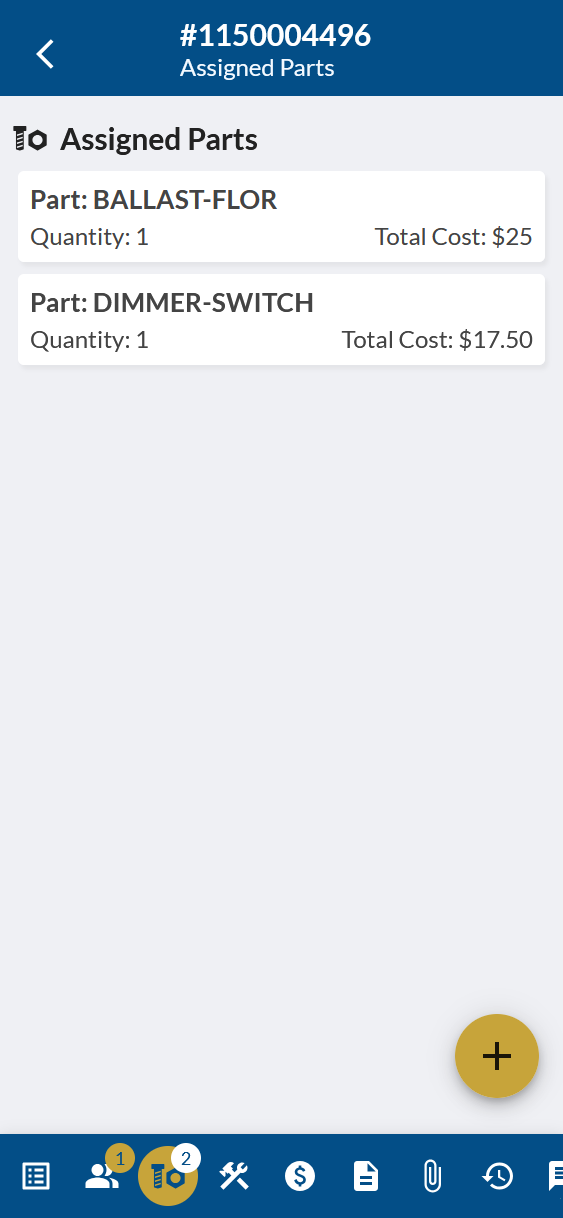
Select a Work Request from a list to [manage it](/maintenance/manage.md). Then select the Parts tab (bolt and nut icon).
The Parts tab shows any assigned parts used on this Work Request. Part costs are calculated automatically and saved to the request. Tab a part to update it.
The Parts Tab
## Add a Part
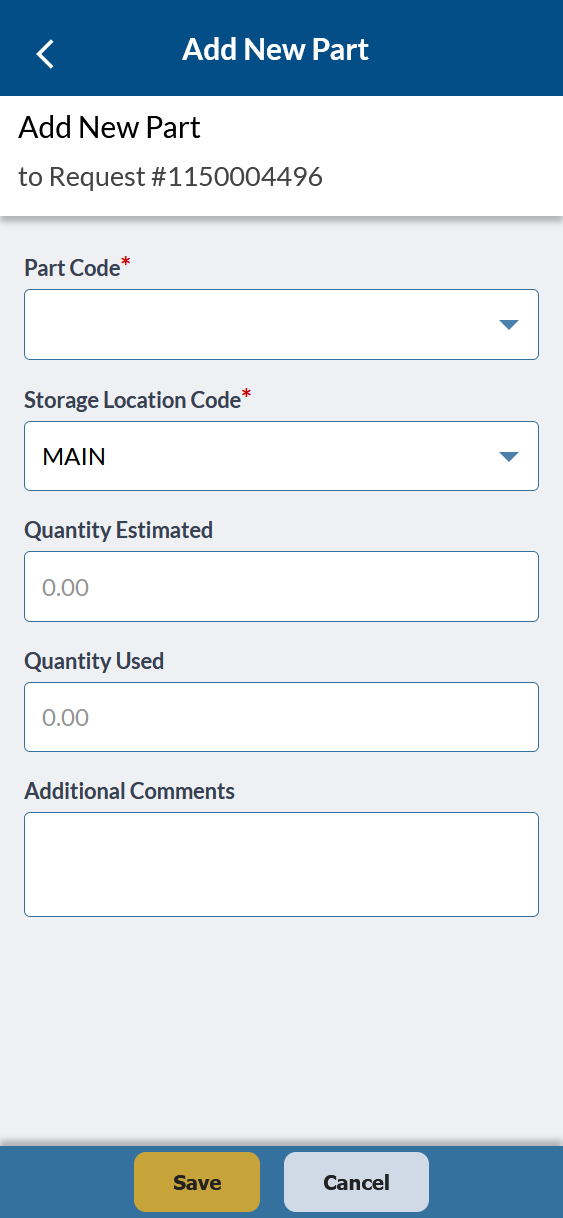
Click the + button to add a new part to the current Work Request.
The Add New Part Form
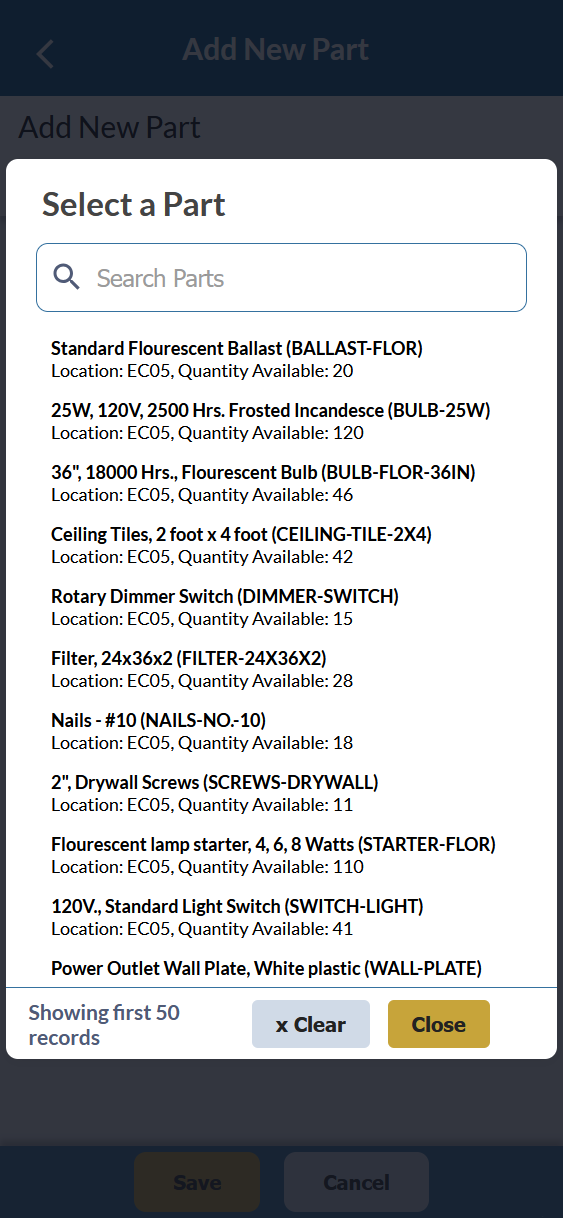
Select a Part from Inventory
Click the Part Code field to select a part from inventory. The location where the part is stored and the quantity available are shown under each part description. Use the search field to narrow down the results.
Selecting a part will fill in the Part Code and Storage Location Code. If you want to track estimates, fill in the Quantity Estimated. Enter the Quantity Used to accurately track usage and costs.
Additional Comments are available to leave notes.